Steam, and the Curious Case of Connect
Disclaimer: This post discusses the Steam SDK API. However, it only mentions methods and functions which are available in the publicly listed API documentation at https://partner.steamgames.com/doc/api/ISteamGameServer. This documentation is available without signing an NDA, and there are also already multiple public dumps of the Steam SDK headers.
This post therefore does not reveal any new NDA'ed information that was previously unavailable. My intention is not to break any NDA by posting this, and it's being done in good faith to help people get started with Steam SDK development.
Did you know that Steam has a built-in server browser for games that support this feature? Did you also know that you can right click an entry and select "Copy link to clipboard", which will give you a link that looks something like steam://connect/ip:port, and which you can invoke in order to have Steam trigger a connection? I wanted to implement specifically the later part for my game, to allow users to connect to arbitrary servers without needing UI support for it.
Chances are that if you are reading this, you've also come to the same point in your game development journey. Or perhaps you are simply interested in learning about the quirks of the Steam SDK. No matter what, sit back and enjoy as I take you through this rabbit hole.
If you have read my first blog post in this article series, you know how to make your server appear in the SteamMatchMakingServers lobby queries. One would think that this would be enough. We clearly implement the Server queries protocol, and our server can show up in our custom server browsers, so... should just work, right?
Well, no. Let's start our experiment by simply trying to run steam://connect/127.0.0.1:5038, to see what would happen (127.0.0.1 is just a placeholder here for the real IP). We will immediately be greeted with this error dialog.
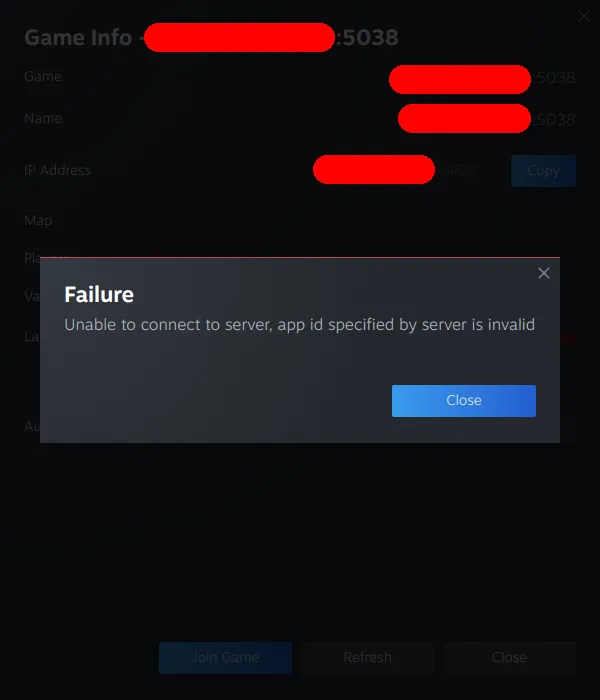
Fascinating, right? Why would the app id provided by the server be invalid? As mentioned, we already have the server queries working. In fact, I even added client side logic to print the app id for the SteamMatchMaking lobby query responses, and the app id was there, as expected.
Next step was to fire up Wireshark. I could quickly confirm that A2S queries were being sent out, and all handshakes as well as the info provided by the server looked correct. The EDF flag was set, and both an extended 64-bit app id was provided as well as the server game port. I also cross checked this with the message exchanges for CS2 where it works. They looked almost identical. This lead me to believe that somehow, all apps are not made equal.
Since I have used the Spacewar code as a reference for the networking parts of my game server, I wanted to see if Spacewar would also behave the the same. I did not know the IP of any Spacewar server, but luckily Spacewar is available in the Steam server browser and there are a few servers there. One cannot be 100% sure that those servers are actually running the Spacewar code, as that app id is regularly used for other things, however at this point I was grasping for any kind of lead.
This is when I discovered that the "Game info" dialog that popped up for the steam://connect/... invocation we did, is actually part of the Server browser in Steam. By right clicking an entry in the server list and selecting "View server info", you can get the same dialog. And just like the CS2 servers, it just worked.
This started to make the gears turn in my head. Seeing as this dialog could be triggered from the Steam server browser - maybe a precondition for it working is having your game listed in the Steam server browser? My game was not listed there, and while I had long term ambitions of having it show up there, I had started in the other direction of trying to get steam://connect/... links working. The fact that one could copy a connect URL from a server browser list entry further fueled my suspicions that this hypothesis could be correct.
So, how does one get a game to show up in the server browser, anyway? I am pretty sure that no matter how much you read the Steamworks API documentation, you will not figure it out. While the server browser is mentioned there, I have not found any reference to the preconditions for making your game show up there.
I started investigating the manifests for Spacewar through steamdb.info, comparing them to mine, trying to find a discrepancy. One discrepancy was that it had the property "gamedir" set to "spacewar". Remember my first article where I mentioned SetModDir? In that article I mainly focused on the documentation from the SDK headers, as that one is usually the more "up to date" one. However, in this specific case the online documentation gives some interesting context:
Sets the game directory.
This should be the same directory game where gets installed into. Just the folder name, not the whole path. e.g. "Spacewar".
Game directory... gamedir... hmm. Looking at the Spacewar example code we can see that, indeed, they call SetModDir("spacewar"). Coincidence?
My manifest did not have have this property set, and I had no idea how to set it. After searching the entire Steamworks admin interface for what felt like 20 minutes, I finally found it.
Since the Steamworks admin interface only available to partners, and is not publicly documented anywhere as far as I know, I will not document the exact structure or steps here. I will just mention that, somewhere in the Steamworks admin settings for your app, it is possible to enter a string that is then supposed to be provided to both SetModDir and SetProduct. There are also a few other fields on this page the need to be filled out for your game to appear in the server browser.
While this is in fact documented by the fields on this specific admin page, it's still a mystery to me how anyone is supposed to figure this out without preemptively going through all of the Steamworks admin interface.
After saving and publishing these changes to my manifest, my game magically appeared in the Steam server browser. Finally some progress. Let's try pressing "Connect" and see what happens.
So, the game actually starts. Nice! But no connection is being made. Makes sense, right? We have not implemented any kind of connection request callback. But how does one even do that? The Steamworks SDK documentation is once again not of great help here. Luckily, trial and error is a thing, and I can now inform you that it's the GameServerChangeRequested_t callback being used for this purpose. Yes, the one with the following documentation:
Called when the user tries to join a different game server from their friends list. The game client should attempt to connect to the specified server when this is received.
Implement this callback using the regular Steam callback system, and you should be good to go. All of a sudden, we can press "Connect" in the server browser and... our game actually connects to the server?! We can also select "View server info" and get the "Game info" dialog, this time showing the actual server info. No "invalid app id" error. It's such a beautiful sight that my eyes actually tear up a bit here.
Surely, steam://connect/... will just work now... right? This time, we can even copy the connect URL from the server browser. Let's try it!
Wait... "app id specified by server is invalid"? 😭
So, yeah. We've come this far, yet the thing we set out to fix is still not solved. I tried to do the same thing with the Spacewar servers, and lo and behold, they have the same problem. One can connect to them through the server browser, look at the server info etc, but when trying to use a steam://connect/... URL as copied from the server browser, it does not work.
My last hope was CS2. I knew that steam://connect/... URLs work for CS2, so let's get back to looking for differences. One difference I quickly zoomed in on is the fact that CS2 uses the same port for queries and game data. I figured that maybe the Steam server info dialog has a bug where it will not work properly when the game server uses different ports for the server queries and the game data, even though the A2S protocol literally allows us to specify a separate game port.
Remember my second article in this blog series, where I mentioned that there was a second important reason why one might want to not use separate ports for the query traffic and the game server traffic? Yes, this is where we tie the entire sack together.
I did a quick PoC, specifying the same port for the game port and the query port parameters of SteamGameServer_Init, and skipped setting up the game traffic socket. Basically, I let Steam set up its server query traffic on the same port that would have been used for the game traffic, and let both ports overlap. Of course this would not allow me to actually connect to the server, but it would let me test my hypothesis.
A few minutes and a deployment later, I could confirm that, yes - this did indeed solve the problem. Using the same port for game traffic data and server queries let steam://connect/... work, and that is how I came to set out on my quest to get STEAMGAMESERVER_QUERY_PORT_SHARED to work with Steam Networking Sockets.
I hope you have enjoyed this short blog series! Stay tuned for more articles in the future.